WhatsApp Web Calling Features for Seamless Team Communication
Being part of a team that is constantly sending messages, emails, and having meetings can make it nearly impossible to have quick conversations that should take just a couple of minutes. Instead, these conversations…
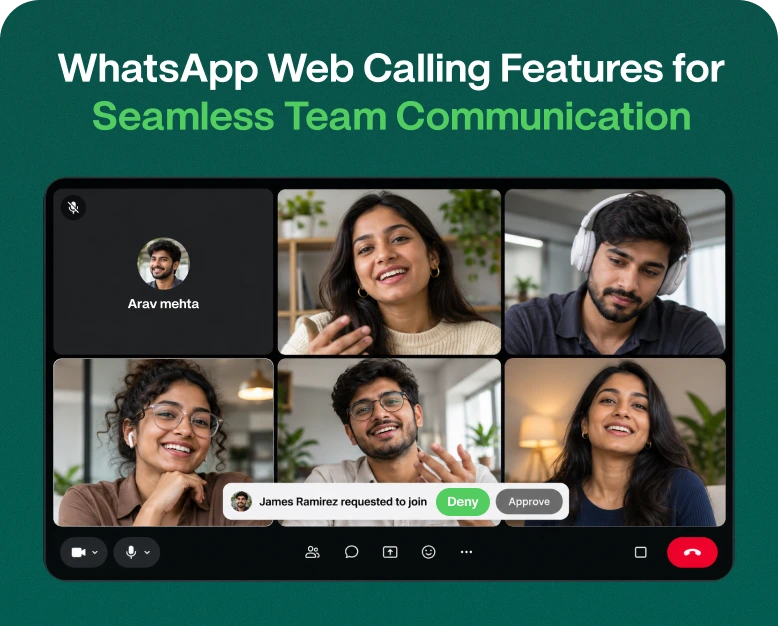
Being part of a team that is constantly sending messages, emails, and having meetings can make it nearly impossible to have quick conversations that should take just a couple of minutes. Instead, these conversations often turn into long and unnecessary email exchanges. Having the ability to call your colleagues via WhatsApp directly from your browser can simplify communication for teams that already rely on WhatsApp for work.
WhatsApp recently introduced whatsapp web calling features, allowing users to make and receive voice and video calls directly through their browsers. This means team members do not have to switch to their phones to make or receive calls. These features allow employees to continue their workflow while communicating with teammates or clients whenever needed.
What Is WhatsApp Web Calling?
The WhatsApp web calling feature can simplify daily communication for team members that are part of small businesses, remote workforces, online businesses, or customer support teams. In this blog, we discuss what WhatsApp web calling is, some important features and benefits of the service, how to use it, and how businesses can use the service for team communication.
WhatsApp Web has traditionally been used for text and file transfers. For work, many relied on the service for customer communication or chat management. Now, WhatsApp Web calls can bridge personal and work communication and further improve the user experience.
Most users have their computer as their primary work platform. This improved WhatsApp Web calling feature makes it easier for users to have voice or video calls in work-related communications.
This calling feature can work for:
- Remote employees for quick work discussions
- Customer Support agents for talking to customers
- Freelancers for talking to clients
- Business Owners for sales or follow up discussions
This feature may work for teams to have WhatsApp video meetings to discuss work instead of having meetings through other apps that may lead to communication or work management delays.
This WhatsApp web calling feature consolidates calling and communication in one location, hence eliminating the need for work management switches.
Important WhatsApp Web Calling Features
WhatsApp has improved web calling, and some of the new features include:
1. Use your Browser to Make a Voice Call
Instead of picking your phone to make a call, you can now do it directly on your browser. This improves communication and work management.
To further illustrate, let’s say that a sales employee is responding to customers on their laptop. A customer wants to know more about a product feature or has a pricing inquiry. Instead of going back and forth with a long message explaining the feature or inquiry, the employee is able to make a quick call to get the information they need and answer the customer’s question.
It is more natural and requires less typing.
2. Face-to-Face Video Communication
Video calls are useful for conversations that require more personal interaction. Teams are able to review project updates, determine customer needs, and product demonstrations via video calls.
Video communication is useful for:
- Client meetings and consultations
- Product demonstrations and/or remote responses
- Project work
- Team discussions
- Discussions with new hires
- Client onboarding
Conversations are more interesting and inviting and give participants a better opportunity to comprehend one another.
3. Group Discussions
There are times when a conversation requires more than two people. Group calls are great for these types of discussions. A group call allows participants to talk and work without creating multiple conversations.
A campaign marketing team can use a group call to discuss and plan out the details of the campaign.
These calls help participants remove barriers to working together to make progress on decisions and subsequently move on to other tasks.
Group calls can facilitate small team discussions, remote collaboration and coordination when employees are in different locations.
4. Screen Sharing for Better Collaboration
Screen sharing helps a lot when we discuss something and it becomes easy for someone to show what they are working on. Sometimes describing something in text may not help when it involves something with a lot of links.
For example, a website developer may want to show the changes to the client instead of taking time to write and explain every single thing.
Screen sharing helps with:
- Website/ product reviews and design
- Demos
- Training
- Reviewing document/presentation
- Guiding customers
It helps explain something and cuts down time and confusion when a lot of things are involved.
5. Reactions During Calls
Call reactions allow participants to quickly respond to a message without interrupting the presenter. Participants can respond with an emoji to acknowledge that they have heard and understood the presenter’s message. They keep discussions flowing and make things easy for participants to respond.
Reactions can help facilitate casual team meetings when employees are working remotely.
6. Dedicated Calls Tab and Call History
Managing communication becomes easier when users can access call-related information from a dedicated area.
WhatsApp Web includes a Calls tab with call history and favorites, helping users revisit recent calls or quickly access important contacts.
This can be useful for employees who regularly communicate with clients, colleagues, suppliers, or business partners. Rather than searching through multiple conversations, they can use call-related information to make communication more convenient.
7. End-to-End Encrypted Calls
Privacy is an important part of digital communication, especially when businesses discuss customer requirements, project information, or personal details.
WhatsApp Web calls are end-to-end encrypted, meaning the call content is protected so that only the participants can access it. This provides an additional layer of privacy during communication.
However, businesses should still follow appropriate data protection practices. Avoid sharing confidential information unnecessarily, use trusted devices, secure your computer, and log out of WhatsApp Web when accessing it on shared systems.
8. Call Transfer Between Devices
Sometimes you begin a call on your smartphone and later need to continue working from your laptop. Switching devices without interrupting the conversation can be helpful in these situations.
WhatsApp’s call transfer functionality allows supported calls to move between devices without requiring participants to hang up and start again.
For example, you may begin a group call while travelling and transfer it to your computer after reaching your workspace. This makes it easier to continue the conversation while using a larger screen.
Feature availability may depend on your account, device, and rollout status.
The WhatsApp Web Calls tab offers users a dedicated area to access their call history and call-related information.
User convenience increases when contact-related information is provided in a dedicated area, as communication becomes easier. For instance, if an employee needs to locate a past communication with a client, they can simply refer to the call history, instead of having to go through numerous conversations.
End-to-End Encrypted Calls
The privacy of employee communication becomes important when an employee discusses client information, or any confidential project information, on a call.
All calls on WhatsApp Web are end-to-end encrypted. This ensures that the content of the call is only visible to the participants and nobody in between can see it.
While WhatsApp Web provides a high level of privacy, employees should still practice adequate levels of data protection. This is to ensure that the information shared is protected, and the computer is secure when WhatsApp Web is used on a shared system.
Calls Transfer Between Devices
Switching devices during a call can be convenient, especially if an employee needs to move a call from their smartphone to their laptop, and continue working.
WhatsApp supports calls transfer. This means an employee can begin a call on their smartphone, and move it to their laptop without needing the participants of the call to end and re-establish the connection.
A business can also transfer a call from a member of their staff working on a project to another staff member who
is not working on the project, using WhatsApp Web’s calls transfer feature.
Feature availability may depend on your account, device and rollout status.
WhatsApp Web Calling – A Detailed Procedure
Using WhatsApp calling on WhatsApp Web is quite easy, all you need is an internet connection, an up to date browser and your WhatsApp account.
Step 1. WhatsApp Web
Open your preferred web browser and visit the WhatsApp Web site.
Step 2. Link Your WhatsApp Account
You may need to link your account, using the QR code on the screen. To do this, on your WhatsApp mobile app, go to Linked Devices and then choose a device and scan the QR code on your browser.
You may see your chats on your browser, and you can enjoy all the features WhatsApp offers including calling.
Step 3. Select contact to call
Go to the chat of the person you want to communicate with and look for the call button.
Call buttons are available for both audio and video calls.
Step 4. Accept microphone and camera requests
Your browser may request permission to access your camera and microphone, allowing these requests.
If you deny these permissions, issues with audio and video during calls may occur. You may manage these permissions within your browser settings.
Step 5: Initiate a Call
Click on the calling option, and the application will do the rest. You can talk or switch to video as supported.
For team discussions, you can make use of the group calling or screen sharing features if available.
Step 6: Manage the Call
Use the controls available to manage your microphone or camera during the call and to share your screen if supported.
Before sharing your screen, ensure that you close all tabs that contain private or sensitive information.
How WhatsApp Web Calling Helps Teams Communicate Better
Team communication is not only limited to chatting. It is about sharing info quickly, defining issues, reaching decisions and doing tasks without long delays.
There are several ways the WhatsApp Web Calling feature can support the aforementioned functions.
Remote employees can talk about the details of their work through informal conversations on WhatsApp, which eliminates the need for organizing a meeting to discuss every minor detail.
Customer support agents can also use voice and video calls to assist customers when a message is not sufficient to describe the issue, for instance, when a customer needs help with a product set up.
Sales representatives can also discuss service and pricing details with prospective customers over calls.
WhatsApp’s web calling feature integrates well with WhatsApp Web, which sales employees are already using to communicate with customers over WhatsApp.
Scenarios in which WhatsApp Web Calling can Aid Business Communications
There are different use cases where browser-based calls can enhance business communications.
Real-World Examples of WhatsApp Web Calling in Business
Example 1: An E-Commerce Business Handling Customer Queries
An Online Store Responding to Customer Queries: Customers message the online store with queries about product sizes, the delivery schedule, returns, and payment. The online store’s support staff can use calls to quickly explain available options to a customer who messages them with multiple queries about product options.
This is especially useful when the customer wants to confirm something before making a purchase. This reduces the number of messages exchanged.
Example 2: Digital Marketing Team
A digital marketing team is launching a campaign. The designer, SEO specialist, content writer, and marketing manager need to discuss various ideas and deadlines of the campaign.
Instead of waiting for all the responses to a long message, the team can join a group call, share the campaign document, and discuss the campaign.
This is much more efficient in assigning tasks to team members and moving the process further.
Example 3: Website Development Agency
A website designer is working on a project to build a client’s WordPress website. The client needs to review the homepage layout, and describing the changes in an email is becoming confusing.
The designer can do a video call and show the client the homepage in the website, and discuss the changes he wants to make.
This is a better way of discussing changes, as it eliminates confusion.
Tips for Making WhatsApp Web Calls More Professional
Although WhatsApp Web calling is a good, simple to use, and free solution, here are some good habits to practice.
- Find a good, fast Internet connection: A good Internet connection reduces interruptions and audio issues.
- Find a good, quiet location: Noise can make it difficult for the other person to understand what is being said.
- Use a headset: Using a headset can help improve the audio and reduce echo.
- Check your camera before joining: Test your camera if you wish to use your video.
- Keep your browser updated: Using the latest browser version ensures better security and performance.
- Share your screen carefully: Close all your private browsing tabs and files before starting a screen share.
- Use group calls only when necessary: Make sure to invite the right participants to the calls in order to maintain focus.
- Protect your account: Log out after using public computers.
The above practices will help enhance browser based communication.
WhatsApp Web Calling vs. Traditional Online Meeting Tools
WhatsApp Web calling is convenient for quick discussions, but it may not replace dedicated meeting platforms for every business requirement.
| Feature | WhatsApp Web Calling | Traditional Meeting Tools |
| Quick voice calls | Yes | Yes |
| Video calls | Yes | Yes |
| Group calls | Yes | Yes |
| Screen sharing | Available | Generally available |
| Easy contact access | WhatsApp contacts and chats | Meeting links or accounts |
| Best for | Quick communication and informal meetings | Formal meetings, structured collaboration |
| Setup | Simple browser-based access | May require meeting setup or invitations |
If your team needs quick discussions, customer follow-ups, and everyday communication, WhatsApp Web calling can be a convenient option. For formal meetings that require advanced recording, meeting transcripts, detailed participant management, or extensive scheduling, dedicated conferencing software may be a better fit.
Frequently Asked Questions
1. Can I make voice calls on WhatsApp Web?
Yes. In a compatible browser, you can make voice calls on WhatsApp Web. You can make calls without switching to your mobile device as long as the feature is enabled on your account.
2. Does WhatsApp Web support video calling?
Yes. One-to-one and group video calls are supported on WhatsApp Web. WhatsApp calls can also be supplemented with features such as screen sharing and reactions.
3. Is calling on WhatsApp Web free?
WhatsApp does not charge a fee for its voice and video calls. However, the calls are processed over the internet. Therefore, your internet service provider may charge you for the data used.
4. Can I use WhatsApp Web calls for business communications?
Yes. WhatsApp Web calls can be used for business communications to talk to customers and employees, as well as for sales and after-sales activities, demonstrations, training, and other business collaborations.
5. Are WhatsApp Web calls secure?
The content of WhatsApp Web calls is end-to-end encrypted. However, users should protect their accounts, and be careful when sharing their screen and having discussions about confidential information.
Conclusion
Communication is essential for productive teams, happy customers, and smooth business operations. Employees can get stuck in low productivity cycles due to constant and excessive dependency on text messaging. It may take several unnecessary extra steps to switch to a mobile device just to make a call.
Communications happen more efficiently when the features of WhatsApp Web calling include making voice and video calls, group chats, screen sharing, and easier access to call history, call reactions, and device switching.
WhatsApp Web calling is particularly beneficial for freelancers, small business owners, remote workers, sales and customer support employees who already use WhatsApp to communicate for work and don’t want to add additional calling features as part of a separate communication tool.
If you’re using WhatsApp to communicate with your customers and/or colleagues, and want to make calling part of your workflow, check out WhatsApp Web calling and see if it improves your daily work. To get started, use WhatsApp Web and make your first browser-based call.
The features described are based on the updates WhatsApp announced about calling on the web, including voice and video calls, screen sharing, call reactions, call history, call transfer, waiting rooms, and noise suppression. Some of these features may not be available to you yet, as they are being rolled out to different regions.
Written by
Kalpit Parmar
Part of the Wbotz team, writing about WhatsApp Business API, automation and the campaigns that actually convert.