WhatsApp Template Download for WhatsApp Business API
Many businesses routinely send customers order confirmations, appointment reminders, payment updates, delivery notifications, and promotional messages. It takes time to write each message from scratch, especially if a…
Many businesses routinely send customers order confirmations, appointment reminders, payment updates, delivery notifications, and promotional messages. It takes time to write each message from scratch, especially if a company is reaching out to hundreds or thousands of customers each day.
This is where the WhatsApp Message Templates come in very handy. Rather than creating each message from scratch, businesses can create reusable templates, customize them with customer information and send them through a supported WhatsApp Business API integration.
If you’re looking for a WhatsApp template download, you might be looking for some template message examples, a template format for your business or instructions on how to create and submit templates through the WhatsApp Business Platform. You should know the process as downloading a sample template is something different than creating an approved template that you can send through the API.
In this guide, you will learn what WhatsApp templates are, where to find downloadable templates, how to create and submit your own templates, what examples work best for different industries, and how to choose a WhatsApp automation platform to simplify the process.
What is a WhatsApp Business API Template?
A WhatsApp Business API template is a pre-approved message format that businesses use to initiate certain conversations with customers via the WhatsApp Business Platform.
With these templates, businesses can send structured messages for common situations like confirming an order, reminding a customer about an appointment, or sharing an important account update.
A typical template would be:
The main message customers receive.
- Variables: placeholders for information such as customer name, order number, date, amount, etc.
- Header: Optional text/image/video/document content based on the template type.
- Footer: Additional optional text to support
- Buttons: Actions that could be taken (like opening a website or letting a customer take the next step).
For example, an online store may use this template:
Order acknowledgement
Hello {1}, Thank you for your order from {2}. Your order number is {3} We’ll keep you informed as your order progresses.
When the message is sent, the placeholders can be replaced with the customer’s name, business name and order number.
Businesses are required to submit templates via the relevant WhatsApp Business Platform interface or their solution provider and meet the relevant approval requirements. A downloaded sample is only a starting point, and is not automatically approved for use with the API.
Download WhatsApp Template: Where to get Templates?
Downloading WhatsApp chat templates or setting up messages for business automation can be started in a few ways.
1. Utilise Meta’s Official WhatsApp Business Platform Resources
The best place to begin to learn about template requirements, message categories, formatting, and approval rules is Meta’s official documentation.
See the WhatsApp Business Platform documentation for the latest technical guidance.
This is particularly useful if your business has a developer or a custom API integration.
2. Download a Sample Template Format
If you need a document to organize your messages before submitting them, you can create a template library in Google Sheets, Microsoft Excel, or a document editor.
Include fields such as:
| Field | Example |
| Template name | order_confirmation |
| Language | English |
| Message purpose | Confirm a customer’s order |
| Category | Utility, subject to Meta’s classification |
| Message body | Hi {1}, your order {2} is confirmed. |
| Variables | Customer name, order number |
| Button | Track order, if supported and configured |
| Approval status | Draft, submitted, approved, or rejected |
This format helps your team keep message content organized and track the approval process.
3. Utilise a WhatsApp Business Solution Provider
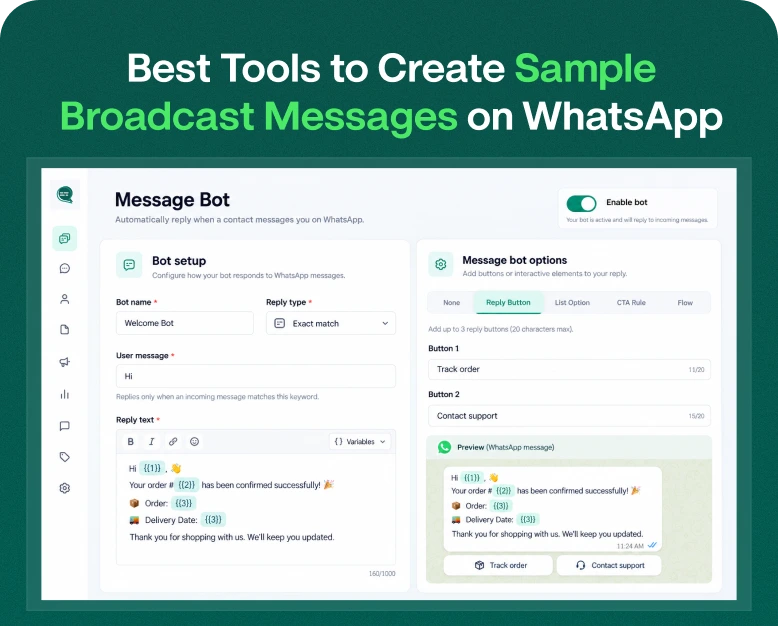
Some WhatsApp business platforms have dashboards that let you build, manage and submit message templates without having to start from scratch.
Platforms like Wbotz and Interakt, for example, offer tools for WhatsApp business messaging. Depending on the product and plan, you may be able to create templates, manage contacts, automate follow-up, and track messaging activity.
Before making a purchase look at what template management features are included in the plan and what the additional charges are, if any.
How to Generate and Submit a Template for WhatsApp API
Downloading a template sample is just the first step. If you want to send template messages using the WhatsApp Business Platform, this is the general process you should follow.
Step 1: Setting Up Your WhatsApp Business Platform Access
To qualify, you need a WhatsApp Business Platform setup, either through Meta supported tools or an appropriate solution provider.
This may include a Meta business portfolio, a WhatsApp Business Account, a registered phone number, and the account permissions required depending on the configuration you choose.
If you’re using a provider, check their onboarding instructions to see what information and verification steps they require.
Step 2: Choose the Objective of Your Message
Decide what you want the message to do before writing the template.
Typical purposes include:
- Confirming an order
- Sharing shipping/delivery information
- Notifying Customers about Appointments
- Delivery of payment notifications
- Providing updates on the account
- Sending promotional offers to qualified customers
WhatsApp templates are categorised into utility, authentication, and marketing. “Appropriate” depends on what the actual message is, and what it is for. The final category is determined by Meta’s rules, so don’t choose a category based on a preferred pricing structure.
Step 3: Create a Clear Template Message
I’m going to ask you to do me a favour. Use plain language and give your customers the information they need.
Such as:
Subject: Reminder: Appointment with [Doctor’s Name] on [Date] at [Time] Dear [Patient’s Name], This is a friendly reminder about your upcoming appointment with Dr. [Doctor’s Name] on [Date] at [Time].
Please arrive 15 minutes prior to your appointment to complete any necessary paperwork. If you need to reschedule or cancel your appointment, please call our office at [Phone Number] at least 24 hours in advance. We look forward to seeing you. Sincerely, The Staff at [Clinic Name]
Subject: Message body:
Hi {1}, just a reminder, you have an appointment with {2} on {3} at {4}. Do you need to make a change? Please contact us.
This message uses placeholders for the customer name, business name, appointment date, and appointment time.
Template names are usually lowercase, numbers and underscores. In your WhatsApp management interface, follow your current naming and formatting requirements.
Step 4: Add Variables and Optional Elements
Templates can be reused with variables. Your software replaces the placeholders with the correct information , rather than writing a new message for every customer .
For example:
- Name of Client
- Order number
- Date of delivery
You can also add supported headers, footers, media, or buttons as appropriate.
Ensure the message remains comprehensible after the placeholders are replaced. Do not place all of the important meaning into variables or use placeholders without providing appropriate example values in the submission.
Step 5: Template Submission for Review
Send the completed template through the corresponding WhatsApp Business Platform interface or your provider dashboard.
Meta reviews templates against its policies and requirements. The content of a template can result in a category, an approval or a rejection.
If the template is rejected, read the reason, revise the content and resubmit where allowed. Just because your message follows a sample format doesn’t guarantee approval.
Step 6: Test the template before you scale it
When the template has been approved, send a test message to make sure it works as expected.
Ensure that:
- Variables show the correct information.
- Functional links and buttons.
- Media shows are correct if used.
- The message is in the right language.
- The recipient gets relevant information.
- Your automation does not send repeated messages.
Testing helps you catch mistakes before you incorporate the template into a larger customer communication workflow.
WhatsApp Business API Template Examples – Ready to Use
Here are some examples to help you prepare your own templates: These are illustrative drafts, not pre-approved templates. Customise them for your business and send them for review before using them through the API.
1. Order Confirmation Template
Template name: order_confirmation
Hi {1}, thanks for shopping with {2}. Order {3} has been successfully confirmed. We will keep you posted on your order status.
Use case: E-Commerce stores, retailers and online sellers.
2. Template for delivery update
Template name: delivery_update
Hey {1}, your order {2} is on the way! You can see the last update of the delivery here: {3}
Use Case: eCommerce & Delivery-based Businesses
Make sure the tracking link is valid and the template components are in line with current requirements.
3. Appointment Reminder Email Template
Template name: appointment_reminder
Hi {1}, This is a reminder that you have an appointment with {2} on {3} at {4}. If you need help, please contact us via the communication channel.
Use case: Clinics, Salons, Consultants, Service Providers.
4. Payment Reminder Letter Template
Template name: payment_reminder
Hi {1}, According to our records, payment {2} of {3} is due by {4}. Please verify your account or contact our team for assistance.
Use case: Subscription Businesses, Educational Institutions, and Service Companies.
Use this type of message sparingly and only when it is appropriate to the relationship between the customer and your business. The company also secured $42 million in a funding round led by Accel.
5. Marketing Offer Template
Template name : seasonal_offer
Hey {1}, we have a new offer from {2} for you. Read more about it here: {3}. If you do not wish to receive promotional updates please reply using the available opt out instructions.
Use Case: Retailers, E-commerce Brands, and any business with qualified marketing audiences.
Marketing templates are usually categorised as promotional messages. Send them only to recipients who have given you the necessary permission, and who meet applicable opt-out requirements.
Advantages of WhatsApp Message Templates
Well-organised templates can improve consistency and reduce the effort involved in day-to-day business communication.
Save Time
Employees need not type the same order confirmation or reminder again and again. After a template is approved and set up, a supported integration can automatically fill in the required information.
Keep Communications Consistent
Templates ensure a business’s language, branding and formatting are consistent when communicating with customers. This is especially useful if several employees handle messages.
Reduce Human Errors
Automated variables are information from an integrated system such as an order number or appointment time. And if it’s configured and functioning properly, it cuts out the need to copy and paste information manually.
Support for Business Automation
Templates can be included in a larger workflow. For example, a store might send an order confirmation after a purchase, and a delivery update when the order status changes.
Improve client experience
Customers can be kept informed with relevant updates on their order, appointment or service request. Better communication could help cut down on repeated questions to support teams.
The results depend on quality of message, accuracy of your business data and implementation of automation.
Downloading or Creating Templates: Mistakes to Avoid
Here are some common pitfalls to look out for when adding templates to your messaging system.
If the downloaded templates are approved: Sample document does not replace the review process at Meta. Submit your own template via the supported interface.
Employing vague placeholders: Variables need a clear purpose and fitting example values. Test them before you message your customers.
Wrong category selected: The correct category varies based on the purpose and content of the message. Follow current Meta guidance.
Sending unsolicited promotions: Ensure you have the necessary permission and respect opt-out requests. Downloading a list of contacts does not give you the right to send messages.
Ignoring template rejections: Review the reasons for the rejection and make the necessary changes instead of submitting the same content again and again.
Overlooking the cost: Be aware of platform subscriptions, messaging charges, and integration fees, as they can influence your total budget. Before you sign up with a provider, check out the current prices.
How To Choose The Best WhatsApp Template Management Tool
If you’re a business that sends messages on a regular basis, it is easier to handle templates with the help of the right platform.
Before you buy a tool, look for these:
- Template management: Create, submit, edit and track templates from one dashboard?
- Automation: Are messages triggered by orders, appointments, customer enquiries, or other events?
- Integration: Will the platform integrate with your CRM, website, online store or booking software?
- Team Collaboration: Are the templates available for authorised employees to use and reply to customers?
- Reporting: Can you look at delivery results and other available metrics for messaging?
- Pricing: Are subscription fees, messaging fees and additional user costs clearly stated?
- Support: What if a template is rejected or an automation fails, is there help?
A small business that only sends occasional reminders may not need a complex platform. If your business processes a high number of orders, has multiple customer service agents, and runs repetitive campaigns, you may benefit from a more advanced automation solution.
Don’t pay for every feature available, choose the one that fits your real workflow.
Frequently Asked Questions
1. Where To Download WhatsApp Business API Templates?
You can refer to Meta’s official WhatsApp Business Platform documentation to learn what the template requirements are and how to create your own formats. Or create reusable drafts in a spreadsheet or document, or a dashboard from a supported provider to handle templates. Note: Sample templates are not automatically approved for API messaging.
2. Can I download free WhatsApp chat templates?
Yes, you can use free document or spreadsheet tools to create your own sample message templates. You can also see examples in the official documentation. However, messaging via the WhatsApp Business Platform may involve provider subscriptions or messaging fees.
3. How to get a WhatsApp API Template approved
In the corresponding WhatsApp Business Platform interface or provider dashboard, create a template. Choose the correct category, add message content and required components, give example values for variables when asked and submit for review. If it’s not accepted, follow the feedback.
4. Is it possible to send a downloaded WhatsApp template directly using the API?
Not at all. You may use a downloaded template as a starting point, but you need to meet the applicable requirements and obtain approval for use where required. Your integration must also refer to the correct approved template, language and variable values.
5. What is the best WhatsApp template for business?
What template is best depends on the purpose of the message. Order confirmations and delivery updates work great for many online stores. Appointment reminders are great for service providers. Promotional templates work for eligible marketing campaigns. Pick a template that has the relevant information and is compliant with the relevant WhatsApp policies.
Conclusion Download WhatsApp Template and Get Started Automation
WhatsApp message templates allow businesses to standardise communication, reduce repetitive work and build more efficient customer messaging workflows. You can make your process management easier by creating reusable templates for anything from order confirmations, payment reminders, appointment notifications to promotional messages.
Check to see which messages your business sends most often. Create drafts in a clean format Organise variables Check Meta’s updated requirements Submit each template through a supported WhatsApp Business Platform interface Test your templates before connecting to larger automations.
Want to manage templates, customer conversations, and automated follow-ups in one place? Check out WhatsApp business platforms like Wbotz and Interakt. Check out their features, integrations, support and overall cost before you choose a plan.
Looking to simplify your WhatsApp messaging? Create your first message templates today, select a supported automation solution, and build a messaging workflow that saves time while keeping your customer communication useful, clear, and professional.
Written by
Jayesh Makwana
Part of the Wbotz team, writing about WhatsApp Business API, automation and the campaigns that actually convert.