How to Set Auto Reply in WhatsApp Using Automation Tools
Introduction Ever miss a customer message because you were busy with something else? Perhaps a customer enquired about your product price late at night, or someone wanted to know your business hours while your team was…
Introduction
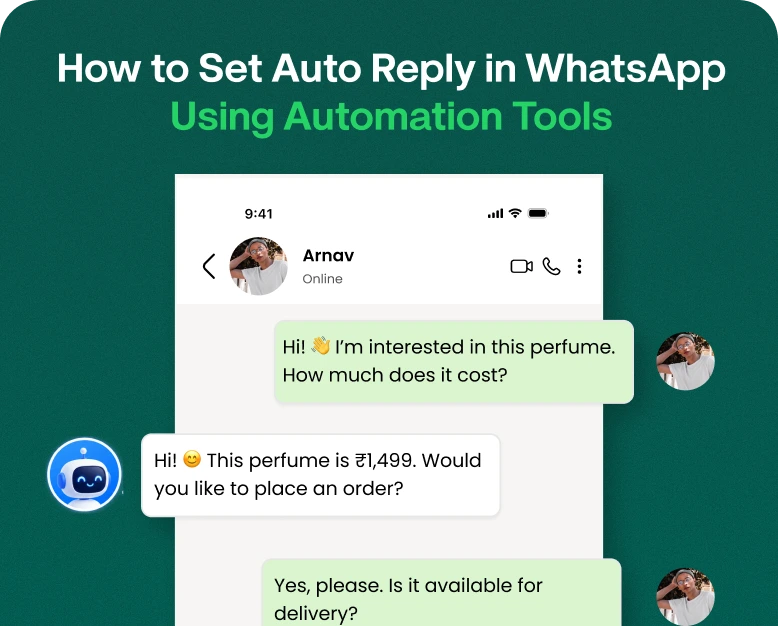
Ever miss a customer message because you were busy with something else? Perhaps a customer enquired about your product price late at night, or someone wanted to know your business hours while your team was offline. If customers do not receive a prompt response, they may lose interest and contact a competitor.
It’s a common problem for small businesses, online stores, service providers, and sales teams that communicate with customers via WhatsApp. Responding to each message manually takes time, especially when your business gets dozens or hundreds of enquiries a day.
The good news is that many of these replies can be automated. Learning how to set auto reply in WhatsApp can help you acknowledge customer messages, answer common questions, and keep conversations going even when you are not available.
WhatsApp offers basic automatic messaging features for business accounts, but advanced automation tools can help you create more flexible workflows, manage customer conversations, and send relevant messages based on specific triggers.
In this guide, we’ll cover how WhatsApp auto-reply works, how to set it up step by step, which automation tools to consider, and how to choose the right solution for your business.
What is WhatsApp Automatic Reply?
An auto reply on WhatsApp is a pre-written message that is sent automatically when a customer messages your business or meets a certain messaging condition.
You have a prewritten message that gets sent automatically when the right rule is triggered. This way, instead of typing the same reply over and over again, you’re typing it once.
For example, if a client messages your business outside working hours, an automatic reply could be:
Hello! Thanks for contacting us. Our team is out at the moment but we’ll get back to you during business hours. Please leave your question and we’ll respond as soon as we can.
This straightforward message informs customers that their inquiry has been received.
How Does WhatsApp Auto Reply Work?
How you do it is contingent upon your method.
- WhatsApp Business app: You can create greeting messages and away messages with the application’s inbuilt tools.
- WhatsApp Business Platform: With approved integrations and automation systems, businesses can manage customer messages, provided they follow WhatsApp’s messaging rules.
- Third-party automation tools: Depending on the features, these tools automate replies, route conversations, collect lead information and integrate WhatsApp with a CRM.
Auto replies are nice for simple communication. Higher message volumes or more complex customer journeys mean more advanced automation is useful for your business.
Why Should Businesses Set Up WhatsApp Auto Reply?
Setting up automatic replies is not simply about the time saving of typing. It is an opportunity to better the communication between your business and current and potential customers.
1. Respond to Customers More Quickly
Consumers will often call a business when they are ready to purchase. If they don’t get a response they may move on to another provider.
An auto reply lets them know right away that you’ve received their message and what will happen next. Even if a human agent is ultimately required to give a full answer, this first response can help manage expectations.
2. Manage Messages Outside of Business Hours
Customers can send messages in the early morning, late at night and on holidays. Sometimes your team can’t be there.
You can use an away message to let customers know your hours of operation and when they can expect a response. That means you can keep in touch without employees being online all day long.
3. Cut down on repeating
Every day, many businesses answer the same questions:
- What are your hours of business?
- What is your product’s price?
- Where’s your store located?
- How do I place an order?
- Do you deliver it to home?
You can automate some of the routine questions with auto-replies and other automation workflows, so employees can spend their time on more complex requests.
4. Generate More Sales Leads
An automation workflow can request basic information from interested customers like their name, preferred product or service requirement.
A real estate company, for example, could automatically ask a customer whether they want to buy, sell or rent a property. So the sales team can then follow up with more relevant info.
5. Improve Client Experience
Open communication is valued by customers. A well-written auto reply confirms the business has received the message and provides useful next steps.
The trick is to make automated messages helpful and natural, instead of sending generic replies that don’t address the customer’s needs.
WhatsApp Business: How to Set Up Auto Reply
If you’re a small business and want to automate simple replies without buying any additional software, the WhatsApp Business app is a good place to start.
It has built-in greeting and away message features. Menu names may differ slightly depending on your device and app version.
Step 1: Download & Install WhatsApp Business
First, download the WhatsApp Business app from the official Google Play Store or Apple App Store.
Follow these steps:
- Launch WhatsApp Business on your phone.
- Enter your business phone number to register or follow the instructions in the app to set up your account.
- Include your business name and category.
- Complete your business profile Add some details like your address, business hours, website and description if you want to.
After completing your profile, you may establish automated messaging.
Step 2: Build a Welcome Message
A greeting message automatically greets customers when they contact your business under the applicable greeting-message conditions of the app.
To put it in order:
- Launch WhatsApp Business.
- Depending on your device, go to Settings or the business tools menu.
- Locate Greeting Messages.
- Activate the feature.
- Insert your welcome message here.
- Select the intended recipients from the options provided.
- Save your settings
Here’s a sample you can customise:
Hi! Welcome to ABC Store, thanks for reaching us out, may you please tell us which product you are interested in so that our team will help you in a while.
Keep your greeting brief, friendly and relevant to your business.
Step 3: Set up an Away Message
An away message can be useful when your business is closed or your team is unavailable.
Here’s what to do:
- Open WhatsApp Business app.
- Go to the business tools or messaging tools section
- Choose Away message.
- Turn the feature on.
The automatic response here.
Select an available schedule (Always send, Custom schedule, Outside business hours).
Select your recipients and save your settings.
For example:
Thank you for contacting us! Our working hours are from Monday to Saturday, 9 am till 6 pm. We are currently unavailable but we will get back to you during our next working hours.
Important: Please double check your business hours and schedule settings. Note: The scheduling options available and the behaviour of the app may vary by version.
Step 4: Test your auto message
Save your settings and then have a colleague (or other suitable account) send a test message.
Look at the following:
- Does the right automatic message appear?
- Is the message clear ?
- Are there spelling mistakes ?
- The schedule should work as intended.
- Is it getting to the right people?
Testing lets you discover configuration problems before your customers do.
How to Send Auto Messages on WhatsApp with Automation Apps
The WhatsApp Business app will suffice for simple greetings and away messages. But as businesses grow, they may require more advanced automation that can handle lead qualification, customer routing, CRM integration and automated follow-up.
That’s where WhatsApp automation tools come into the picture.
Step 1: Select the Appropriate Automation Tool
What do you want to automate before you buy any software?
For instance, do you want to send a welcome message, answer frequently asked questions, collect customer information, or transfer conversations to multiple agents?
Find a solution that offers the features your business needs, such as:
- WhatsApp automated replies.
- Keyword or workflow triggers
- Chatbot capabilities.
- Shared inbox for team.
- Lead qualification and capture.
- CRM integrations.
- Reports and message templates.
If you’re planning to use advanced business messaging automation, verify whether the provider uses the official WhatsApp Business Platform and if they support the features you need.
Step 2: Link Your WhatsApp Business Account
Pick a tool and follow the instructions to connect your account.
The process differs by provider, and may include linking an existing eligible business account, verifying business information, or creating a WhatsApp Business Platform number.
Before you link your number, make sure this setup doesn’t interfere with how you currently use the WhatsApp Business app or your messaging process.
Use authorised integrations instead of unofficial tools that automate WhatsApp Web through unsupported methods. Unofficial automation can expose customer data or risk your account.
Step 3: Build an Auto-Reply Workflow
Once your account is connected, head to the automation or chatbot part of the tool.
Create a workflow outlining when to send an auto-message and what the message should say.
For example a simple workflow could be like this:
Trigger: Customer Communications
I’m going to work with the two of you.
Automating the rule
New Search, Keyword or Supported Condition
Send the corresponding automatic reply
If needed, assign to team member
The triggers available depend on the automation tool. Some offer keyword-based answers, others offer visual workflow builders and chatbot conditions.
Step 4: Create Helpful Auto-Responses
In your auto-reply, you should either answer the customer’s question right away, or tell them what to do next.
Don’t send the same long message for every question. Where possible, develop different responses to different customer needs.
Here are some examples:
For questions about pricing
Thank you for your interest! Please indicate which product or service you need and our team will provide you with the relevant pricing information.
For order status
Hello! We’re here to help you check the status of your order. Please provide us with your order reference using our approved support process.
For appointment booking
Thanks for reaching out! Please tell us the date and service you are interested in and our team will assist you with the available appointment options.
For Leads
Hello! Would you like product information, pricing, or a personalized consultation? Reply with your preference and we will assist you.
Keep messages conversational and never ask customers to provide unnecessary personal or financial information.
Step 5: Set Up Rules for Different Customer Queries
Advanced automation tools may let you create rules based on keywords, selected menu options, customer responses, or other supported triggers.
For example:
| Customer inquiry | Automated action |
| “Price” | Send pricing information or request product details |
| “Delivery” | Share delivery information |
| “Support” | Route the conversation to the support team |
| “Appointment” | Start an appointment inquiry workflow |
| “Human agent” | Offer a handoff to an available team member |
Make sure your rules are specific enough to avoid sending irrelevant responses. If the system cannot understand a message, it should offer a clear way to reach a human agent.
Step 6: Test and activate the workflow
Before you turn automation on for all your customers, make sure you test it with common questions and with unusual message formats.
Make sure that:
- The right trigger starts the workflow.
- The answer is in line with the customer’s question.
- And when they need to, customers can get a human.
- Messages aren’t sent multiple times by mistake.
- Your workflow is compliant with the applicable WhatsApp messaging requirements.
Regularly review your automation as your products, prices, hours of operation and policies change.
Best WhatsApp Automation Tools to Try
The right tool will depend on your business size, communication channels, and automation needs.
< box spacing={3}>
1. WhatsApp Business App
Ideal for freelancers, neighbourhood shops and small businesses needing basic greeting messages, away messages and simple customer communication.
Best for: Learn the basics of auto replies.
I’ve been on the road for a few years now, and I’ve come to know a lot of people.
2. Wbotz
Worth considering if your business needs WhatsApp marketing and customer conversation management capabilities. Check out their current automation, inbox, integrations and pricing to see if they fit your needs.
Best for: Businesses looking to explore WhatsApp automation and team workflows.
3. Manychat
Check out this solution if you are interested in experimenting with chatbot-style messaging and automated customer journeys across the supported channels. Before choosing, check its current WhatsApp capabilities and plan restrictions.
Best for: Companies looking into chatbot workflows.
Compare available features, setup requirements, messaging charges, agent limits, and customer support before you buy. Get a free trial or a product demo and you can make a better informed decision.
Auto-Reply Settings to Avoid Common Mistakes
Automation works best when it helps customers, not when it makes them mad.
- Sending irrelevant messages: Always try to relate your response to the customer’s question.
- Using outdated information: Always check prices, links, opening hours and product details.
- Ignoring human support: Have a way to talk to a real human when the request is complex.
- Sending too many followups: Respect client preferences and any relevant messaging regulations.
- Ignoring WhatsApp policies: Follow the relevant consent, template and messaging requirements for your account and use case.
- Skip testing: Before you start relying on a workflow for live customer communication, test it.
Remember, an automated answer is no substitute for good customer service. It’s a way to make your service faster and more systematic.
Frequently Asked Questions
1. How do I turn on auto reply in WhatsApp?
Open WhatsApp Business and look for the section for business or messaging tools. Make a greeting message or away message. For advanced workflows, use a proper WhatsApp automation tool.
2. How to send an auto message on WhatsApp when you are offline?
Enable the away message option in WhatsApp Business and select an appropriate schedule. Here’s a short message you can use to explain your business hours and when to expect a reply:
3. How to Send Auto Messages on WhatsApp Without Saving the Contact?
Your setup and the type of message will determine the answer. An eligible business messaging platform may offer automated responses to incoming customer conversations without the need to save every customer as a contact. Follow the contact and messaging rules of the platform.
4. Can I have auto replies on WhatsApp for multiple employees?
Yes. Depending on your setup, shared inbox and automation software can direct incoming conversations to various agents or teams. See user limits, assignment abilities and integrations in the software.
5. WhatsApp auto reply software free?
WhatsApp Business has free basic features for greetings and away messages without needing any extra software subscription. Third-party automation platforms can charge subscription fees, usage-based fees, or WhatsApp messaging fees depending on their pricing structure and your usage.
Conclusion: Save Time and Automate WhatsApp Responses
Knowing how to set auto reply in WhatsApp can help your business respond faster, save repetitive work, and give your customers a better experience.
If you’re only looking for simple greetings and away messages, the WhatsApp Business app may be all you need. If you need to automate lead capture, route conversations, connect your CRM or run a larger support team, a dedicated automation tool may be a better fit.
Start by identifying the most common messages your business receives, create clear responses, and test your workflows before scaling.
Looking to make your WhatsApp communication much easier? Explore Wbotz and assess its capabilities for automating WhatsApp and managing inboxes. Select a solution that suits your budget, supports your workflow and helps your team turn customer conversations into better business opportunities.
Written by
Kalpit Parmar
Part of the Wbotz team, writing about WhatsApp Business API, automation and the campaigns that actually convert.