Best Web Scanner WhatsApp Software for Business Teams
Managing WhatsApp conversations across a business team can quickly become difficult. Customer messages arrive throughout the day, sales representatives need to respond quickly, and support agents must keep track of…
Managing WhatsApp conversations across a business team can quickly become difficult. Customer messages arrive throughout the day, sales representatives need to respond quickly, and support agents must keep track of ongoing conversations. When everyone depends on a single phone or account, important messages can easily get missed.
This is where a web scanner WhatsApp solution can help. It allows users to access WhatsApp through a web browser by linking a device, making it easier to manage conversations from a computer. For business teams, the right setup can improve daily communication, reduce manual work, and help employees respond to customers more efficiently.
However, not every WhatsApp web access tool is designed for professional business use. Some options focus only on connecting a phone to a browser, while others provide team inboxes, customer management, automation, and reporting features.
In this article, we’ll explain what a WhatsApp web scanner is, how it works, what features businesses should look for, and how to choose the right WhatsApp software for your team.
What Is a Web Scanner WhatsApp Tool?
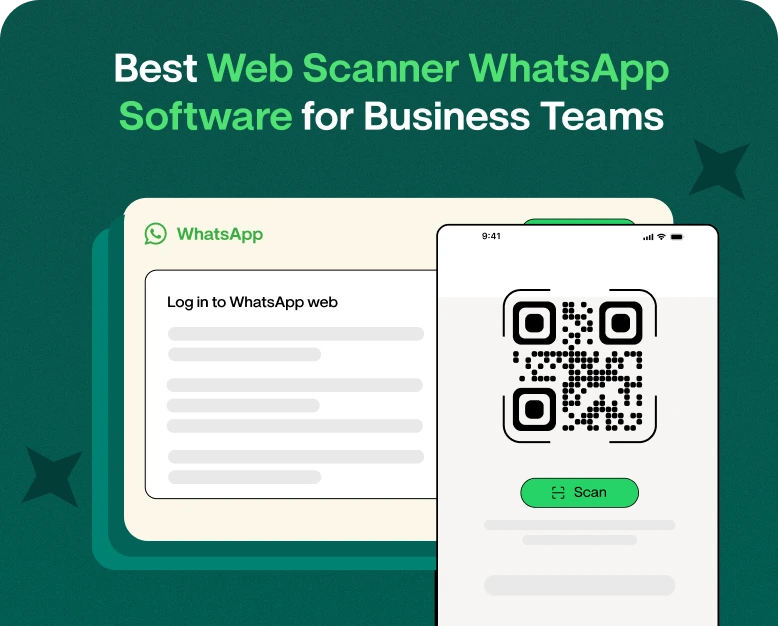
A web scanner WhatsApp tool generally refers to the QR-code scanning process used to connect a WhatsApp account to a web browser or a supported desktop device. Users scan a QR code displayed on the computer screen using WhatsApp on their phone to establish the connection.
Once connected, users can access their chats from a larger screen and type messages using a keyboard. This can be useful for businesses that handle customer inquiries, share product information, coordinate orders, or provide customer support throughout the day.
It is important to understand that a WhatsApp web scanner is not necessarily a separate business application. The QR scanner is part of the device-linking process. Additional business features depend on the platform or software being used.
For example, a basic WhatsApp Web connection helps one user manage chats from a computer. A dedicated business communication platform may provide a shared team inbox, conversation assignment, automated replies, and customer information management.
How Does a WhatsApp Web Scanner Work?
The connection process is straightforward when using the official WhatsApp application.
- Open WhatsApp Web: Visit the official WhatsApp Web website on your computer.
- Display the QR code: A QR code appears on the screen.
- Open WhatsApp on your phone: Go to the linked-devices section in the application.
- Scan the code: Use the phone to scan the QR code displayed on your computer.
- Start communicating: After the device is linked, access your conversations through the browser.
The exact menu names may vary depending on your phone and application version.
Always use official WhatsApp services or a trusted business provider. Never scan a QR code from an unknown website or person, as it could link your account to a device you do not control.
Why Do Business Teams Need WhatsApp Web Scanner Software?
WhatsApp is widely used for customer communication because it is familiar, convenient, and suitable for quick conversations. However, managing a growing number of messages can become challenging when a business relies only on a mobile phone.
A WhatsApp scanner can make everyday communication easier, while more advanced software can help teams organize their work.
1. Faster Customer Responses
Typing on a computer is often more convenient when responding to detailed customer questions. Employees can answer inquiries, share links, explain services, and send product information without constantly switching between devices.
For example, a sales representative receiving a pricing inquiry can quickly send a quotation from a computer rather than typing a long response on a phone.
2. Easier Conversation Management
When customer messages arrive throughout the day, keeping track of every conversation can be difficult. Browser-based access makes it easier to review chats while working on documents, orders, or customer records.
For larger teams, a shared inbox can offer additional organization by allowing conversations to be assigned to specific agents.
3. Better Team Productivity
Employees often need to communicate with customers while performing other tasks. Accessing WhatsApp from a desktop can reduce interruptions and make it easier to manage communication alongside regular work.
Businesses should remember that linking WhatsApp to a browser does not automatically provide multi-agent management. Teams that need several employees to handle customer conversations should evaluate dedicated team inbox software.
4. More Convenient File Sharing
Business conversations frequently involve invoices, product catalogs, order confirmations, screenshots, and documents.
Using WhatsApp on a computer can make it easier to select and share files stored on the desktop, subject to the application’s supported file types and limits.
5. Improved Customer Experience
Customers appreciate timely responses and clear information. When employees can access conversations conveniently, they may be able to resolve questions faster and provide a more consistent experience.
For businesses with high message volumes, structured workflows and appropriate automation can improve this process further.
Best Features to Look for in WhatsApp Software for Business Teams
Choosing the right software requires more than checking whether it can scan a QR code. Your business should consider its message volume, team size, customer support requirements, and plans for growth.
Here are the most useful features to evaluate before purchasing a solution.
1. Secure Device Linking
A reliable WhatsApp web scanner should use a legitimate device-linking process. Account security is especially important when employees access business conversations from shared or office computers.
Look for clear instructions on linking and unlinking devices, account access management, and security practices.
Avoid services that request your WhatsApp verification code, PIN, or other sensitive account information without a legitimate reason.
A shared inbox allows multiple authorized team members to work with customer conversations from a central interface, depending on the provider’s integration and permissions.
Useful capabilities may include:
- Assigning conversations to specific agents.
- Viewing conversation status.
- Identifying which team member is handling a customer.
- Adding internal notes.
- Transferring conversations between departments.
This is particularly valuable for customer support teams, online stores, and service businesses.
3. Multi-Agent Access
If several employees need to answer customer messages, check whether the platform supports separate agent accounts and role-based permissions.
Using one linked WhatsApp Web session is not the same as having a proper multi-agent system. A business platform designed for teams can provide more structure and accountability.
4. Automated Replies and Chatbots
Automation can help businesses handle common questions without requiring an employee to write every response manually.
For instance, a business might automate responses to questions about:
- Opening hours.
- Product availability.
- Shipping policies.
- Appointment scheduling.
- Order status.
- Frequently requested service details.
Before buying, confirm which automation features are included and whether they work with the integration your business uses. Official WhatsApp Business Platform solutions may have different capabilities and messaging rules from a standard linked-device connection.
5. Customer Relationship Management (CRM)
CRM integration helps businesses organize customer details, track leads, and manage follow-ups.
A sales team might record a prospect’s requirements, assign a follow-up task, and review previous interactions before contacting the customer again.
If your business relies on lead generation, look for software that supports your existing CRM or provides suitable customer management features.
6. Analytics and Reporting
Reporting can help managers understand how effectively the team handles customer conversations.
Depending on the software, useful metrics may include:
- Number of conversations received.
- First-response time.
- Conversation resolution time.
- Agent workload.
- Lead conversion activity.
Check how each metric is calculated and whether the reports are included in the subscription plan.
How to Choose the Best Web Scanner WhatsApp Software
The best option depends on how your business communicates with customers. Use the following steps to compare solutions before making a buying decision.
Step 1: Identify Your Business Requirements
Start by understanding your current communication challenges.
Ask yourself:
- Do you need WhatsApp access on a computer for one employee?
- Do several agents need to handle customer messages?
- Do you want automated replies?
- Do you need CRM integration?
- Will you send marketing messages to customers who have opted in?
A small business that needs occasional desktop access may not require advanced software. A growing company handling hundreds of conversations may benefit from a dedicated business communication platform.
Step 2: Compare Connection Methods
Understand the difference between standard WhatsApp Web access and business messaging integrations.
- Standard WhatsApp Web: Suitable for accessing an existing WhatsApp account through a linked browser.
- WhatsApp Business app: Designed for businesses that need features such as a business profile, labels, and quick replies, with capabilities depending on the current app version.
- WhatsApp Business Platform: Designed for business messaging integrations, automation, and larger-scale communication workflows through supported providers and tools.
Choose the option that matches your requirements rather than paying for features you will not use.
Step 3: Evaluate Team Management Features
If multiple employees will handle customer conversations, check whether the software offers separate agent logins, conversation assignment, internal notes, and permissions.
Ask for a demonstration if the feature descriptions are unclear. Confirm that the number of agents you need is supported by the selected plan.
Step 4: Review Pricing Carefully
A low starting price does not always mean a low total cost.
Before purchasing, check:
- Monthly or annual subscription fees.
- Additional agent charges.
- Setup or onboarding costs.
- Integration fees.
- Messaging charges, where applicable.
- Feature restrictions on lower-tier plans.
Compare the total cost against the time saved and the business problems the software solves.
Step 5: Check Security and Reliability
Customer conversations may contain personal details, order information, or confidential business discussions. Review the provider’s privacy policy, data-handling practices, access controls, and account recovery process.
Also check whether the provider explains how it connects to WhatsApp. Be cautious of unofficial tools that promise unlimited automation or bulk messaging without explaining their methods and compliance requirements.
Step 6: Test Before Committing
Whenever possible, use a trial or request a product demonstration.
Test a few realistic tasks:
- Connect an account using the supported method.
- Send and receive customer messages.
- Assign a conversation to another agent, if available.
- Test automated replies, if included.
- Review reports and customer records.
- Contact support with a technical question.
This gives you a clearer idea of whether the software fits your workflow.
Real-World Examples: How Businesses Can Use WhatsApp Scanner Software
Different businesses can benefit from WhatsApp desktop access and team messaging tools in different ways.
Example 1: An Online Store
Imagine an online clothing store receiving customer questions about sizes, delivery times, payment methods, and returns.
With WhatsApp Web, a customer service employee can answer messages from a computer while checking order information. If the store adopts a shared inbox, conversations can be assigned to the correct employee, reducing the chance of duplicate replies or unanswered inquiries.
Example 2: A Digital Marketing Agency
A marketing agency may use WhatsApp to communicate with clients about campaign updates, creative approvals, and project deadlines.
Desktop access makes it convenient to share documents and links. A team inbox or CRM integration can provide a more organized way to track client requests and follow-ups.
Example 3: A Real Estate Company
Property agents often receive inquiries about prices, locations, property availability, and site visits.
A structured messaging platform can help a team assign incoming leads to agents, record customer requirements, and schedule follow-ups. Automation may also answer basic questions before an agent takes over.
These are illustrative scenarios, not claims about a specific software product. Actual results depend on the business’s workflow and the features available in its chosen platform.
Benefits of Investing in WhatsApp Business Software
For businesses that receive regular customer messages, the right software can provide several advantages.
- More organized communication: Keep conversations easier to review and manage.
- Improved response efficiency: Use a desktop keyboard and reusable replies to handle common questions.
- Better teamwork: Assign conversations and clarify responsibility when using a suitable shared inbox.
- Consistent customer service: Use approved response templates and workflows to provide clearer answers.
- Less repetitive work: Automate suitable tasks such as initial greetings and frequently asked questions.
- More visibility for managers: Review available performance reports to identify delays and workload issues.
- Room to grow: Choose software that can support additional agents and integrations as message volumes increase.
The value comes from matching the software to your actual needs. A simple web connection may be enough for a solo business owner, while a growing support department may need a more complete customer communication system.
Common Mistakes to Avoid When Using a WhatsApp Scanner
Before selecting a WhatsApp web scanner, keep these common mistakes in mind.
Using Untrusted QR Codes
Only scan QR codes from official WhatsApp services or a provider you have independently verified. A malicious QR code may link your account to an unauthorized device.
Assuming One Account Supports Every Team Workflow
Linking a device does not automatically create agent-level permissions, conversation assignments, or a shared customer database. Verify these features before purchasing software.
Ignoring WhatsApp’s Messaging Policies
If your business sends promotional or automated messages, make sure it follows applicable WhatsApp policies, consent requirements, and messaging rules. Avoid unsolicited bulk messaging and misleading promises about unrestricted sending.
Choosing Software Based Only on Price
A cheap plan may lack essential features or charge extra for additional users. Compare the total cost, functionality, support, and security before deciding.
Forgetting to Review Linked Devices
Regularly review the devices connected to your WhatsApp account and unlink any you no longer recognize or use. This is especially important when an employee leaves or a shared computer is no longer needed.
Frequently Asked Questions (FAQs)
1. What is a web scanner WhatsApp tool?
A web scanner WhatsApp tool usually refers to the QR-code process used to link a WhatsApp account to a web browser or supported device. It lets users access conversations from a computer. Additional business features depend on the software or integration being used.
2. Is WhatsApp Web Scanner free to use?
Official WhatsApp Web access is generally available without a separate subscription fee. However, third-party business software may charge for team inboxes, automation, CRM integrations, reporting, or other advanced features. Check the provider’s current pricing before purchasing.
3. Can multiple employees use one WhatsApp account?
WhatsApp supports linked devices, but the number and type of supported connections can vary. For a business team, a dedicated shared inbox or an official business messaging integration may offer better control over agent access and conversation assignments. Verify the provider’s current limits and features.
4. Is it safe to use a WhatsApp scanner online?
It can be safe when you use the official WhatsApp Web service or a trusted provider. Never scan unfamiliar QR codes, share verification codes, or link your account on a computer you do not trust. Review linked devices regularly and remove access you no longer need.
5. What is the best WhatsApp software for business teams?
The best solution depends on your team’s size and requirements. For basic desktop messaging, the official WhatsApp Web may be sufficient. Businesses needing multi-agent support, automation, CRM integration, and analytics should compare dedicated business messaging platforms and check their integration methods, security, pricing, and policy compliance.
Conclusion: Choose the Right WhatsApp Software for Your Team
A web scanner WhatsApp solution can make customer communication more convenient by allowing employees to access conversations from a computer. For small businesses, basic WhatsApp Web access may be enough. For larger teams, shared inboxes, multi-agent access, automation, CRM integration, and analytics can help create a more organized communication process.
Before buying, identify your team’s needs, compare connection methods, review security practices, and calculate the total cost. Most importantly, choose a solution that supports your business goals without compromising customer privacy or WhatsApp’s messaging policies.
Ready to improve your business communication? Compare WhatsApp business software options, request a product demo, and test the features your team needs most. Choosing the right platform today can help your business manage customer conversations more efficiently as it grows.
Written by
Jayesh Makwana
Part of the Wbotz team, writing about WhatsApp Business API, automation and the campaigns that actually convert.